

Block scam texts before they reach you
Getting 5+ spam texts daily? Lifeguard's SMS filtering uses AI to stop spam texts before they reach you. Enter your phone number below to run your free security scan and get started.
By providing your number and requesting a security check, you agree to receive a message from Lifeguard for verification and to receive your security check results. You agree you are entering a number owned only by you, and to receive a verification code. Subject to Lifeguard's Terms of Service and acknowledge the Privacy Policy. Message and data rates may apply.



Block scam texts and calls automatically. Set it up in 5 minutes or less.
Lifeguard uses AI to detect and block scam messages in real time.
Scam Text Blocking
Instant protection from scam and junk texts.
Custom Blocking Rules
Choose what types of messages you want blocked.
Bank Grade Security
Always secure
Simple to Setup
No complicated settings. Just install, choose what to block, and you're protected.
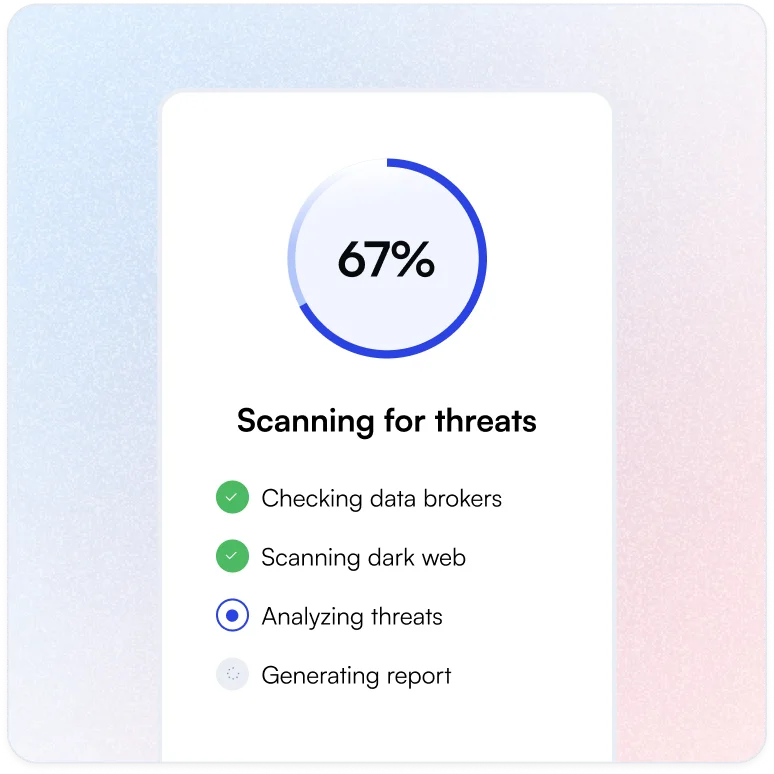
Start with a free scan
Enter your phone number and we'll scan the internet to find where your phone number is being leaked.
Download the App & Set Your Filters
Install Lifeguard on your iPhone, then choose which types of scam texts and calls to block.
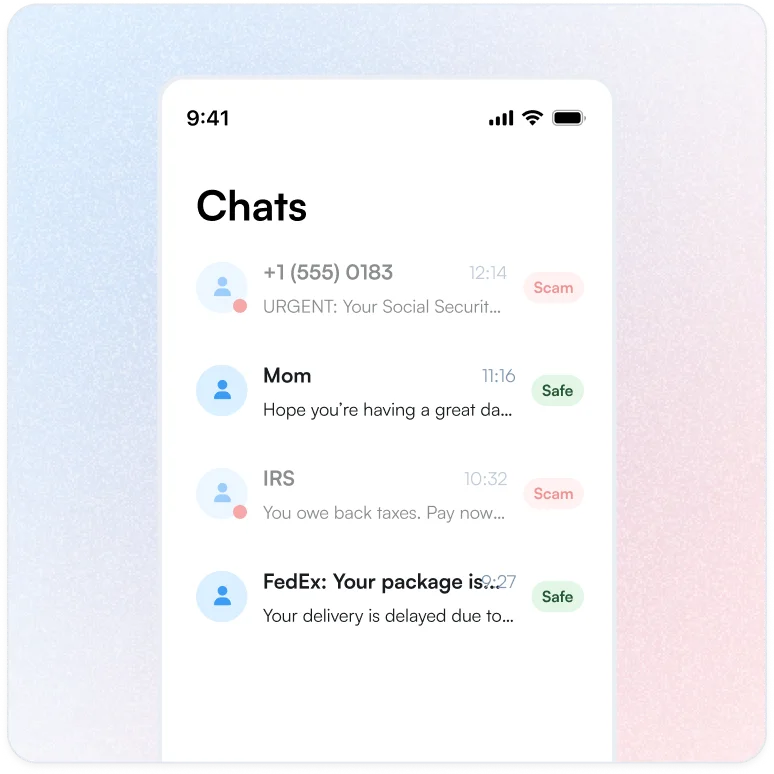
Let AI block scam messages automatically
Your inbox stays clean. Our AI blocks scam texts before you even see them.
Frequently asked questions
How does Lifeguard help me block spam texts on my phone?
Lifeguard works quietly in the background to protect your loved ones from scam texts before they can cause harm. When a text message arrives, our system instantly checks it against known scam patterns. Things like fake delivery notices, phishing attempts pretending to be banks, and those "you've won a prize" messages that try to trick people.
If we spot something suspicious, the message gets moved to a separate folder so it doesn't interrupt your day. Safe messages, like appointment reminders, shipping updates from real stores, or verification codes from your bank, come through normally.
What's the difference between blocking spam texts with my phone settings and using Lifeguard?
Your phone's built-in spam filtering catches some obvious junk, but it wasn't designed to protect families from the sophisticated scams targeting older adults today.
Lifeguard goes deeper. We specifically watch for:
- Delivery scams pretending to be USPS, UPS, or Amazon
- Banking scams that mimic real alerts from Chase, Bank of America, and other banks
- Government impersonation like fake IRS or Social Security messages
- Tech support scams claiming to be from Apple, Microsoft, or Google
- Medicare and healthcare fraud targeting seniors
We update our protection constantly as new scams emerge. Think of it as having an extra layer of safety built specifically for the kinds of tricks that catch people off guard.
Will Lifeguard's SMS filtering work on both iPhone and Android to block spam texts?
Right now, SMS filtering is available for iPhone users. The feature works through Apple's native message filtering system, which means it integrates smoothly with how your iPhone already handles texts.
Android support isn't available yet. If your family member uses an Android phone, they can still benefit from Lifeguard's email protection and other safety features while we work on expanding phone protection to more devices.
Will Lifeguard accidentally block important texts like bank alerts or 2FA codes?
We've built safeguards specifically to prevent this. Our system recognizes legitimate messages like:
- Two-factor authentication codes from banks, email providers, and apps
- Real shipping confirmations and delivery updates
- Appointment reminders from doctors and service providers
- Personal messages from friends and family
When we analyze a text, we look for context clues that tell us "this is something the person is expecting" rather than blocking anything that mentions a bank or includes a link. We'd rather let a borderline message through than accidentally block something important.
Can I review or unblock messages that were filtered as spam texts?
Messages we flag as suspicious aren't deleted. They're moved to your iPhone's Junk folder where you can review them anytime. If something was filtered by mistake, you can open it right from that folder.
We're also building tools to make it even easier to review what's been filtered and let us know when we got it wrong. Your feedback helps us improve protection for everyone.
Does Lifeguard's SMS filtering work with all carriers to block spam texts?
Yes. Because we work through Apple's message filtering system on iPhone, the protection works regardless of which carrier you use - AT&T, Verizon, T-Mobile, or any other provider. The filtering happens on the device itself, so there's no carrier setup or changes needed.
Does Lifeguard read the content of my texts to block spam, and how is my data protected?
To spot scams, we do analyze the text content when messages come in—but we do this with your family's privacy in mind:
- Messages aren't linked to your identity in our system
- We don't store personal conversations between you and people you know
- Analysis happens instantly and suspicious patterns are what we keep, not your private details
- We never share your messages with advertisers or data brokers
The goal is protection, not surveillance. We only keep what's needed to stop the next scam from getting through.
Is SMS filtering included with other Lifeguard services, or is it a separate plan?
SMS filtering is part of Lifeguard's Phone Protection features. You can enable or disable it based on what your family needs, it's not required, but it's there when you want that extra layer of safety for text messages.
For specific plan details and what's included at each level, check your account settings or reach out to our support team. We're happy to help you find the right fit for your family's situation.