

Email spam protection service stop phishing emails
Scam emails look more real than ever. Our AI analyzes every message to flag fraud attempts, fake invoices, and malicious links—so you don't fall for them.
By providing your number and requesting a security check, you agree to receive a message from Lifeguard for verification and to receive your security check results. You agree you are entering a number owned only by you, and to receive a verification code. Subject to Lifeguard's Terms of Service and acknowledge the Privacy Policy. Message and data rates may apply.



Don't let a fake email cost you thousands.
Lifeguard's AI reads your emails like a security expert—spotting red flags humans miss.
Deep Email Analysis
AI scans sender info, links, attachments, and language patterns to detect sophisticated scams.
Malicious Link Detection
Every link is checked against known phishing sites and analyzed for suspicious redirects.
Real-Time Warnings
Get instant alerts when a dangerous email lands in your inbox, with clear explanations of the threat.
Email security that thinks for you
Connect your inbox and let AI do the heavy lifting. No more second-guessing suspicious messages.
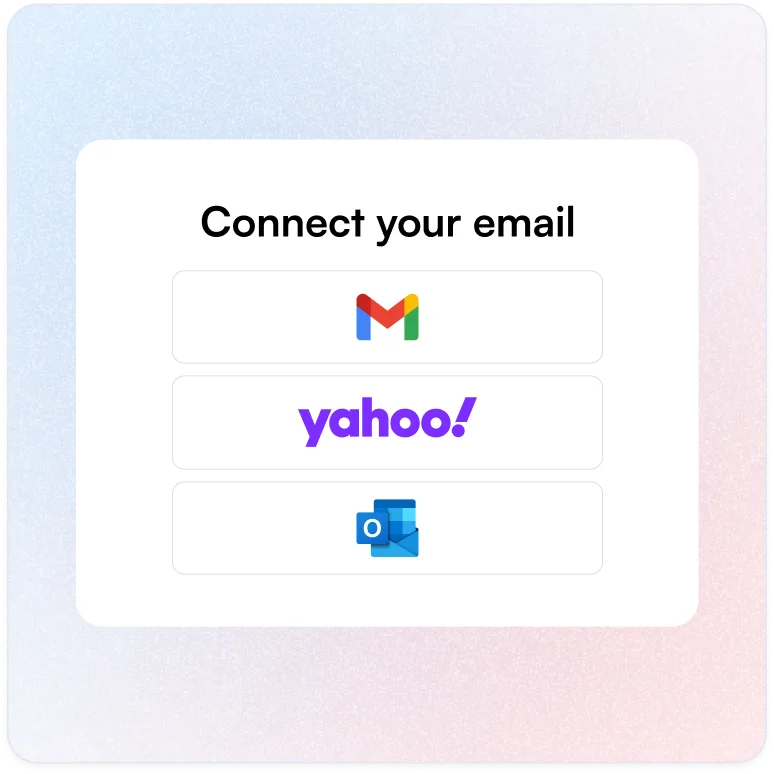
Connect your email
Securely link your email accounts. We support Gmail, Outlook, Yahoo, and more.
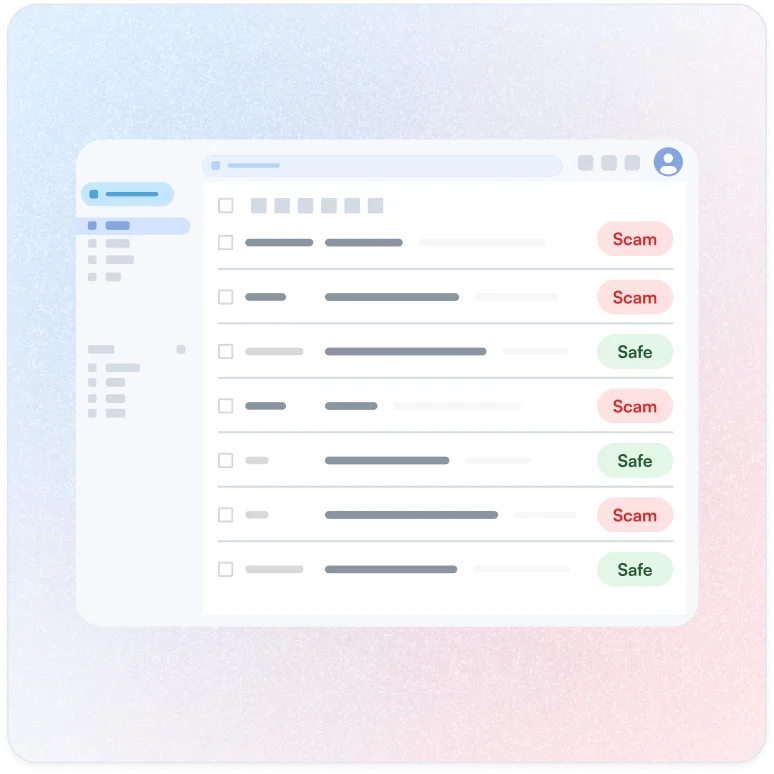
AI scans every message
Our AI analyzes incoming emails in real-time, checking for phishing attempts, scam patterns, and dangerous links.
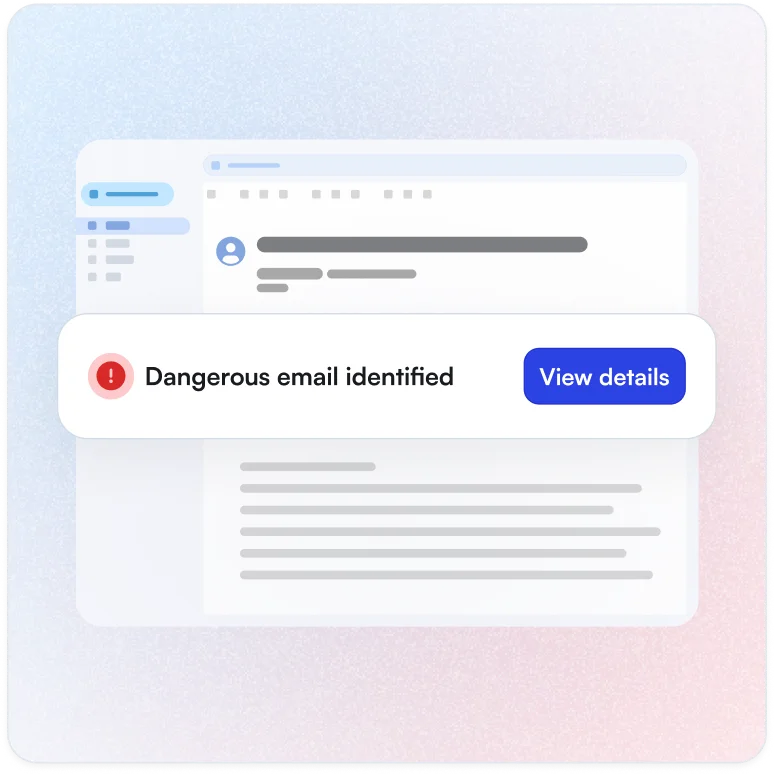
Get warned before you click
Dangerous emails are flagged with clear warnings explaining exactly what's suspicious and what to do.
Frequently asked questions
What is email spam protection and how does Lifeguard Email Protection work?
Lifeguard Email Protection watches over your inbox to catch dangerous emails before they can cause harm. We're not just filtering annoying ads. We're looking for the deceptive messages that trick people into giving away passwords, clicking malicious links, or sending money to scammers.
Here's how it works:
1. You connect your email account through a secure sign-in process
2. Lifeguard begins monitoring incoming messages in the background
3. When an email arrives, we analyze who sent it, what it's asking you to do, and whether anything looks suspicious
4. If we spot warning signs, we flag the message and let you know what to watch out for
It's like having someone double-check your mail and tap you on the shoulder when something doesn't look right.
How does Lifeguard keep my email protected?
Protection happens continuously, not just when you check in:
Ongoing monitoring:
- We sync with your inbox regularly throughout the day
- New emails are analyzed as they arrive
- You don't need to remember to run scans—it happens automatically
Real-time analysis:
- Each incoming email is checked against known threats
- We verify sender authenticity using technical email standards (SPF, DKIM, DMARC)
- Suspicious patterns trigger deeper analysis
Staying current:
- Scam tactics evolve, and so does our detection
- We track emerging threats targeting older adults specifically
- Our systems learn from the threats we catch across all the families we protect
Health monitoring:
- If something interrupts our connection to your email, we'll let you know
- You can check your protection status anytime in the dashboard
Think of it as a safety net that's always there, working quietly in the background so you don't have to worry.
How is Lifeguard different from the spam filter built into my email provider?
Your email provider's spam filter is designed to catch obvious junk. Lottery scams, medication ads, and messages from known bad senders. It does a decent job with the easy stuff.
But the emails that actually hurt people are more sophisticated. They look like real messages from banks, delivery services, or tech companies. They use your name. They create urgency. Your provider's filter often lets these through because they don't look like traditional spam.
Lifeguard is built specifically to catch these dangerous imposters:
- We check if the sender is really who they claim to be
- We analyze the message for manipulation tactics like fake urgency or authority claims
- We examine links to see if they lead somewhere safe
- We look at technical details in the email headers that reveal spoofing attempts
We're focused on protecting people, not just cleaning up clutter.
What email providers does Lifeguard Email Protection work with?
Lifeguard currently works with:
- Gmail (Google accounts)
- Outlook (Microsoft 365 and Outlook.com accounts)
These cover the vast majority of personal email users. When you connect, you'll sign in directly with Google or Microsoft—we never see or store your email password.
We're working on expanding to additional providers. If your family uses a different email service, reach out and let us know.
Does this work with my work email?
Yes, if you have access to connect it. Lifeguard works with most major email providers including Gmail & Outlook. For corporate accounts with restrictions, check with your IT department.
Will Lifeguard warn me if an email looks suspicious?
Yes, that's exactly what we do. When we detect something concerning, you'll see it in a few ways:
In your inbox:
- High-risk emails get labeled so you can spot them immediately
- The label tells you at a glance that something needs caution
In your Lifeguard dashboard:
- Suspicious emails appear in your threat timeline
- Each one includes an explanation of what raised our concern
- You'll see specific details: "This sender is impersonating your bank" or "This link doesn't go where it claims"
Alerts when it matters:
- For serious threats, we can notify you right away
- You choose how you want to be alerted—email, text, or app notification
The goal is to give you the information you need to make a safe decision, not to overwhelm you with warnings about every marketing email.
Will Lifeguard Email Protection block good emails by mistake?
We've designed our system to be careful, not aggressive. We'd rather warn you about something questionable than accidentally hide an important message.
Here's how we avoid false positives:
- We look at multiple signals together, not just one suspicious element
- Legitimate transactional emails (receipts, confirmations, appointment reminders) are recognized and allowed through
- We check sender authentication to verify real businesses
- Our analysis understands context and a link in a shipping confirmation is different from an unexpected "verify your account" demand
When we do flag something, the email isn't deleted. It stays accessible so you can review it yourself if needed.
Can I review, recover, or whitelist emails that Lifeguard marks as spam?
Absolutely. We never delete your emails, we just help you see which ones deserve extra caution.
Reviewing flagged emails:
- Check your Lifeguard dashboard to see everything we've flagged
- Each entry explains why we thought it was suspicious
- You can view the original email anytime
Recovering emails:
- If we moved something to spam or archive, you can find it in those folders
- Move it back to your inbox with one click in your email app
Letting us know we got it wrong:
- You can mark any detection as a false positive
- Your feedback helps us improve both for you and for other families we protect
We want you to stay in control. Our job is to point out risks, not to make decisions for you.
What should I do if a phishing email slips past filtering and shows up in my inbox?
No protection catches everything, so it's good to know the warning signs yourself:
Before you click or reply:
- Does the email create urgency? ("Act now or your account will be closed")
- Is it asking for personal information, passwords, or payment?
- Does the sender's email address match the company they claim to be?
- Do the links go where they say they go? (Hover to check before clicking)
If something feels off:
- Don't click any links or download attachments
- Don't reply with personal information
- Go directly to the company's website by typing the address yourself
- Call the company using a number you find independently, not one from the email
Help us improve:
- Report the email through your Lifeguard dashboard
- Your report helps us catch similar messages for other families
When in doubt, slow down. Legitimate companies won't punish you for taking time to verify.
How do I set up Lifeguard Email Protection on my inbox?
Setup takes just a few minutes:
- Start the connection — In your Lifeguard dashboard, choose "Connect Email" and select your provider (Gmail or Outlook)
- Sign in securely — You'll be taken to Google or Microsoft to sign in directly. We never see your password.
- Grant permission — Allow Lifeguard to monitor your inbox for suspicious messages. We only request the access we need to protect you.
- Protection begins — Once connected, we start watching your inbox right away. We'll check recent messages and continue monitoring as new emails arrive.
That's it. No software to install, no settings to configure. Your inbox stays where it is, we just add a layer of protection on top.
Do you read or store the content of my emails to provide spam and phishing protection?
To spot dangerous emails, we do need to analyze what's in them—that's how we catch the tricks scammers use. But we handle your email with care:
What we look at:
- Who sent the message and whether they're really who they claim to be
- The content and tone, e.g. is it trying to scare or pressure you?
- Links and where they actually lead
- Technical details in the email headers that reveal spoofing
How we protect your privacy:
- Your email password is never stored. We use secure sign-in through Google or Microsoft
- OAuth tokens (what lets us access your email) are encrypted
- Only you and authorized family members can see your flagged emails
- We don't share your email content with advertisers or third parties
We're here to protect your family, and that includes protecting your privacy. We access what we need to keep you safe, nothing more.